


The agents who need this most are the ones who never log into their CRM
You know who this is. Maybe it’s you. The agent with a genuinely good CRM sitting behind a login screen that gets opened once a week, if that. Leads pile up. Follow-ups slip. The system that was supposed to save time becomes one more tab nobody has the energy to open at 8pm after a full day of showings.
Here’s what changes that: you can connect Claude directly to your GoHighLevel account and run your CRM by talking to it — from your phone, in your car, between appointments. No dashboard. No hunting for the right screen. You say what you need, it happens.
This isn’t something Hi5 built. It’s a native GoHighLevel capability, available to any GHL account today. What we’ve built is the documentation that makes it actually useful for your specific setup — more on that below.
What you’re actually connecting
This runs on something called MCP (Model Context Protocol) — a standardized way for Claude to securely read and act inside another piece of software, in this case your GoHighLevel account. Once connected, Claude isn’t guessing at what a generic CRM might contain. It’s looking at your actual pipelines, your actual contacts, your actual data.
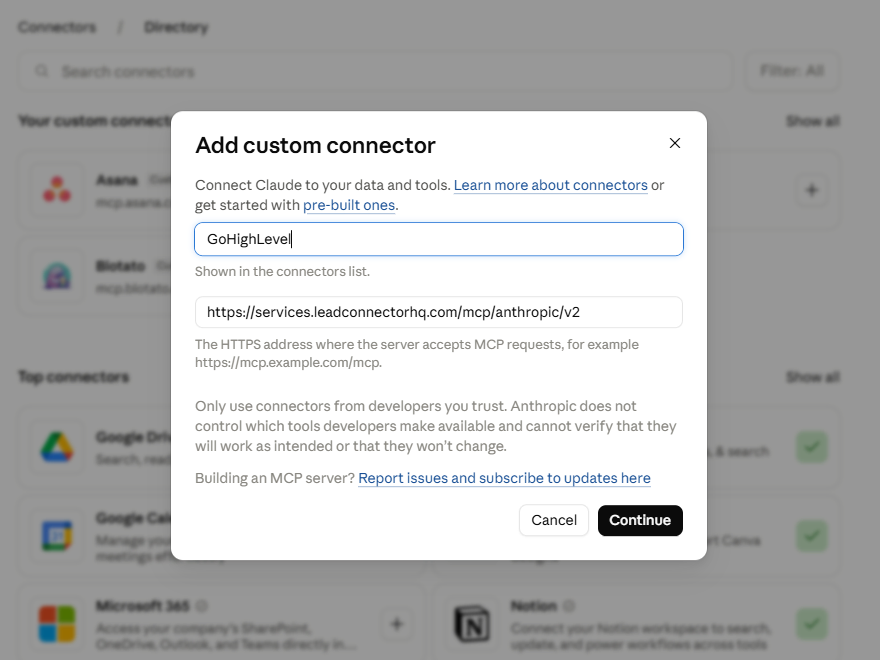
How to connect it — step by step
https://services.leadconnectorhq.com/mcp/anthropic/v2That's the whole setup. The screens may shift as Claude's interface changes, but the connector URL and the one-time login are the parts that matter.
Three real ways agents are actually using this
It’s one thing to say “you can manage your CRM by chatting with it.” Here’s what that actually looks like in practice.
You just walked out of a listing appointment
You’re back in your car, the ink’s barely dry on the conversation, and normally this is the moment where the follow-up work either happens immediately or gets pushed to “later” and quietly forgotten. Instead, you pull out your phone and just say it out loud, or type it in one message:
I just closed a listing appointment with John Smith. Convert him to a client and move him to the seller pipeline. We’re listing his home at $475,000, so update the opportunity value. Add notes that we agreed on a photography date next Tuesday. And draft an email to the title company with his contact information.
Claude updates the pipeline stage, sets the opportunity value, logs the notes, and hands you a drafted email — all before you’ve pulled out of the driveway.
You want a daily debrief instead of a dashboard
Set up a recurring check-in — every morning, or however often makes sense — where Claude summarizes your day: which appointments are coming up, which clients haven’t heard from you in a while and need a nudge, and what’s actually urgent versus what can wait.
It can draft the follow-up texts and emails for those overdue contacts right there, ready for you to review and send. And because it’s reading your actual CRM data, it can flag things like an upcoming due diligence deadline on a deal in progress — the kind of date that’s easy to lose track of when you’re juggling a dozen things at once.
A deal gets more complicated, and the data needs to stay organized
Say a buyer’s spouse needs to be added as a co-buyer on a contract. Instead of you manually creating a new contact record and remembering to cross-reference it everywhere it needs to show up, you just tell Claude:
Add Sarah Martinez as a co-buyer with David Martinez on the Oak Street offer — create her as a contact and link the two of them together, plus link both to the opportunity.
Claude uses Associations — a real feature built into your CRM — to keep the records properly connected, instead of you doing that bookkeeping by hand.
None of these require you to open GoHighLevel at all.
A current limitation worth knowing about: one connected user at a time
Here’s something we’ve run into with teams, worth knowing before you rely on this for a multi-person setup: at the time of writing, GoHighLevel’s MCP connection only properly supports one connected Claude account per sub-account at a time — even though logically it should support your whole team each connecting their own account.
What actually happens: if one person on your team has already connected their Claude account, a second team member trying to connect their own account won’t get through the login flow. Instead of completing, it just loops back to the install screen repeatedly — because the app already shows as “installed” from the first person’s connection.
The workaround: go to that sub-account’s GoHighLevel Marketplace, open Installed Apps, and remove the Anthropic/Claude app. Then have the second person log in — this forces a fresh install under their account, and it should connect properly. The first person’s own access stays intact; this doesn’t disconnect them, it just resets which login the “install” step is pointed at.
This is a platform-level limitation on GoHighLevel’s side, not something we control, and it’s the kind of thing that could get resolved in a future update — we’ll update this post if that changes. If your team needs multiple people with independent, controlled access without fighting this limitation, that’s exactly where the API-based approach in our Claude Code guide has a real advantage — separate API keys per person, no shared login flow to conflict over.
One more limitation worth knowing: uploading new media
Right now, the chat-based MCP connection can schedule a social post or attach media that already lives somewhere with a link — a Canva design, a file in your Google Drive, something already sitting in your GoHighLevel media library. What it can’t do is upload a brand-new file directly. If you want to post a photo straight from your phone without it already existing somewhere with a URL, that’s outside what MCP currently supports.
That’s exactly the kind of gap the API-based Claude Code connection closes — it can upload media directly, not just reference it by URL. If you’re comfortable with a little more setup and want that extra flexibility, our Claude Code guide covers exactly how to connect it.
One thing that makes this dramatically more useful for real estate specifically
Claude connecting to a generic GoHighLevel account is helpful. Claude connecting to your specific setup, already knowing what every pipeline, tag, and automation actually does, is a different level entirely.
Every Ultimate Real Estate OS purchase — DIY, Done For You, or Custom — includes a documentation file built specifically for your configuration. Hand it to Claude once, and instead of Claude guessing at what a generic CRM might contain, it already understands your exact buyer/seller/rental pipelines, your custom fields, and how your automations are supposed to work.
That’s the difference between “Claude can technically use GoHighLevel” and “Claude actually knows your business.”
Ready to actually use this?
Don’t have GoHighLevel yet? Start your free 30-day trial — most trials only give you 14.
Already have GoHighLevel, and want a system this actually pays off with? The Ultimate Real Estate OS ships with documentation built specifically so Claude understands your exact setup from day one.
Want to go further than chat-based requests — building actual custom scripts and automations on top of your GoHighLevel data? That’s a different setup, covered in our companion guide: Connecting Claude Code to GoHighLevel via API.
FAQ
In Claude's Settings, go to Connectors, select "Add custom connector," and enter GoHighLevel's MCP server URL (https://services.leadconnectorhq.com/mcp/anthropic/v2). You'll complete a one-time login to authorize access, then enable the connector in any conversation.
Yes — this is a native GoHighLevel platform capability included with your GoHighLevel account, not a separate paid add-on. You'll need an active Claude account (a free Claude account can connect it, though usage limits vary by plan) and an active GoHighLevel account.
Yes — Claude's mobile app supports voice input, so you can speak your request the same way you'd type it, and it processes the same way once transcribed.
Yes. Once the connector is set up (which you can do from desktop or mobile), it works the same way across the Claude mobile app, desktop app, and claude.ai in a browser — including from your phone in the car between appointments.
Currently, GoHighLevel's MCP connection reliably supports one connected user at a time per sub-account. If a second person tries to connect, the login loops back to the install screen. The workaround is to remove the Anthropic/Claude app from that sub-account's Installed Apps in the GoHighLevel Marketplace, then have the second person log in, which forces a fresh install under their account.
The connection uses GoHighLevel's own official authorization flow (OAuth) — you're logging into your real GoHighLevel account to grant access, not handing credentials to a third party. Claude only accesses what your GoHighLevel account permissions allow.